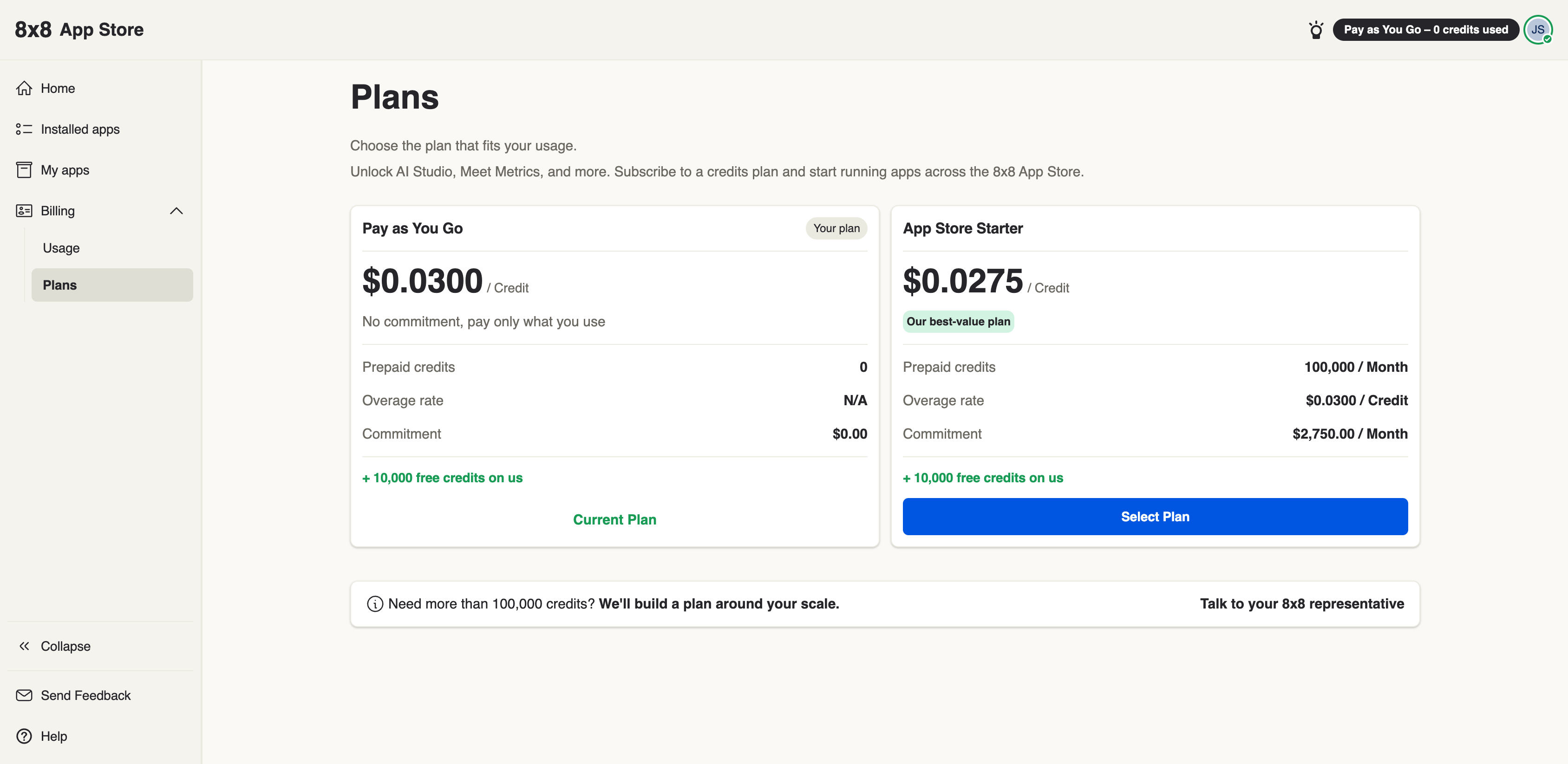
Invoices & billing
Once you're on a plan you can review your charges, watch your credit usage, and cancel if you no longer need the plan.
Viewing an invoice
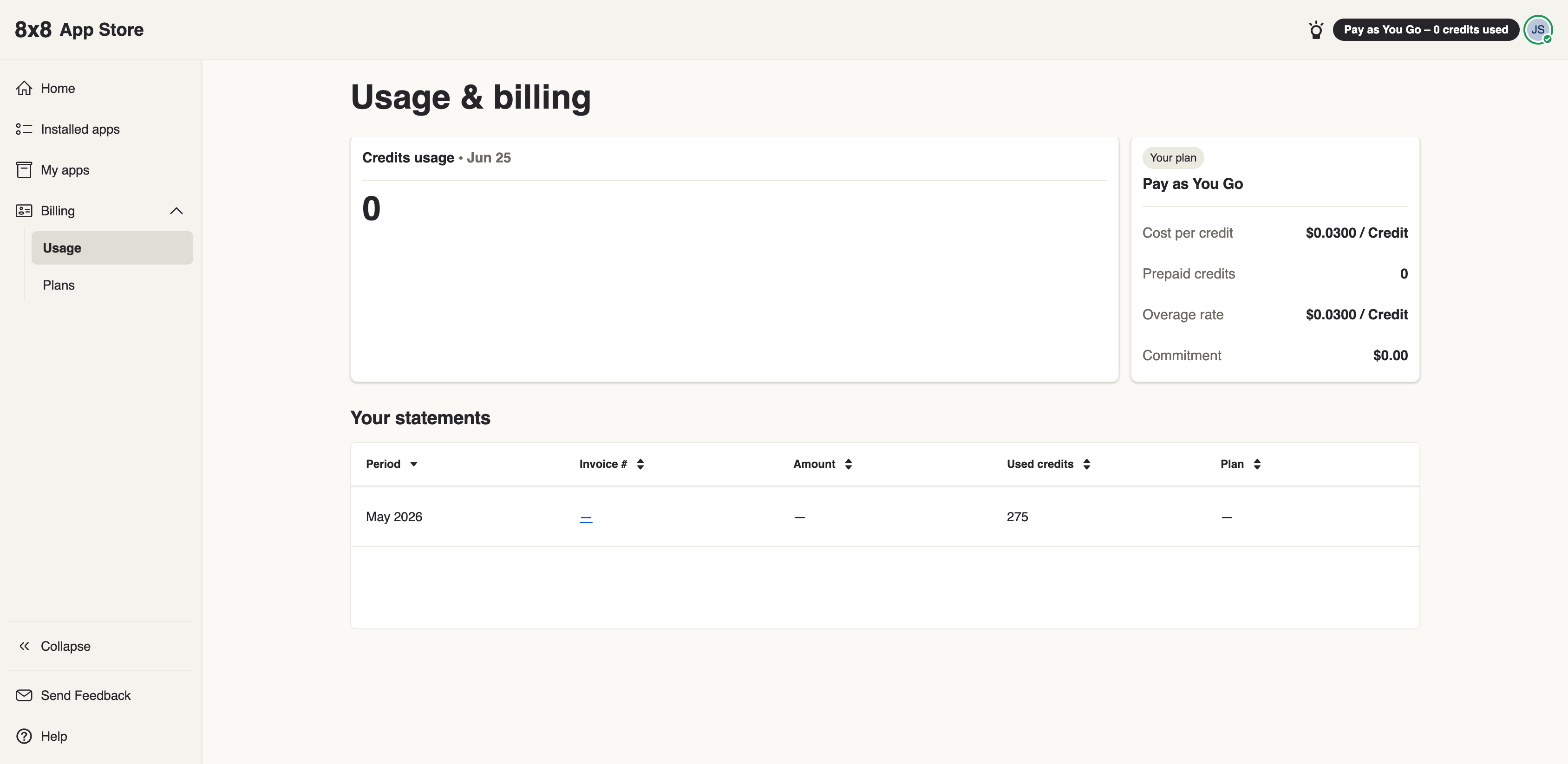
Your billing history and invoices are available from Billing.
Understanding your invoice
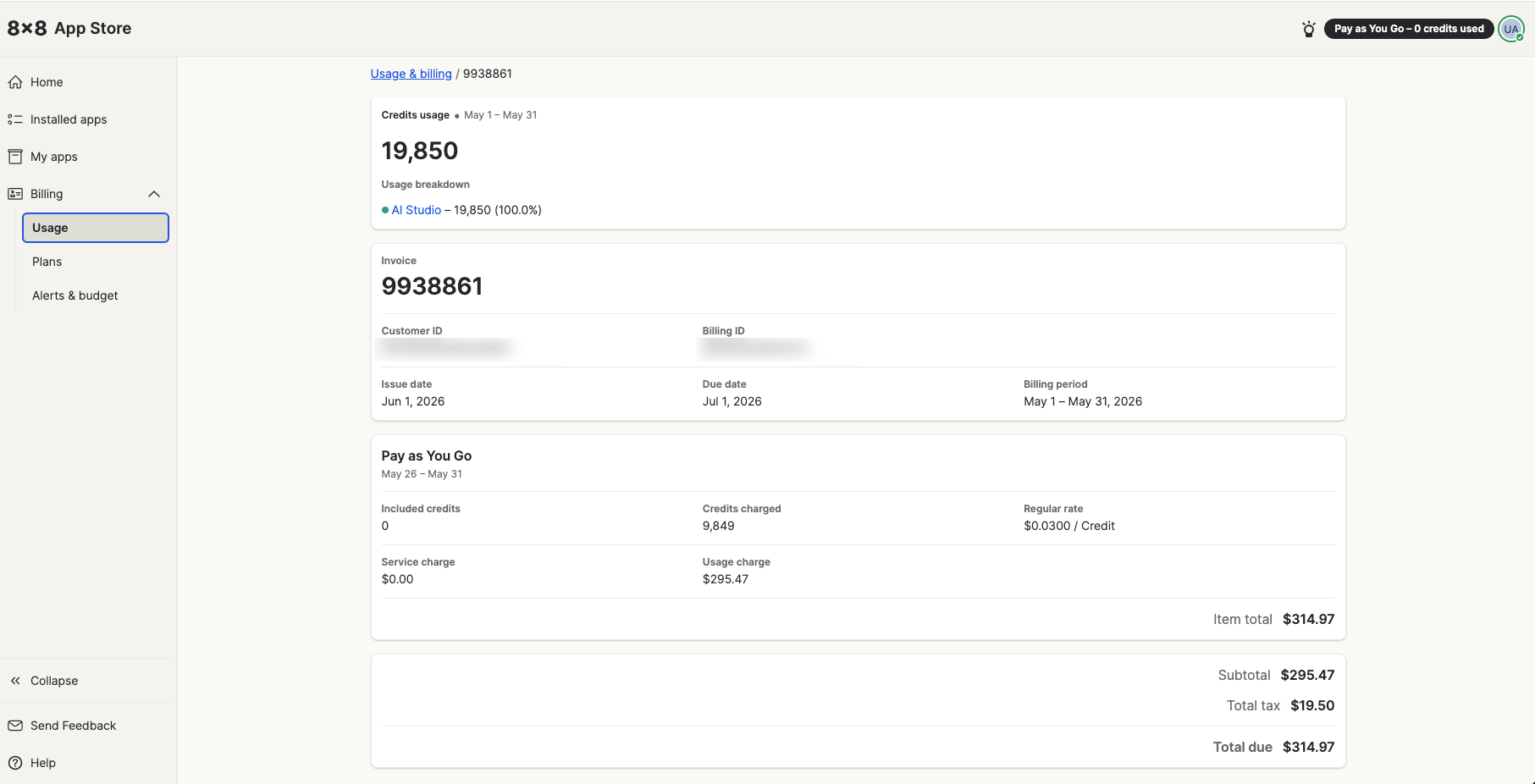
An invoice reads top to bottom — from a summary of what you used, through the charges, down to the final amount due. Here's what each part means.
Credits usage
The total number of credits you used during the billing period, with a Usage breakdown showing how those credits split across your apps.
In this example all usage is AI Studio (100%), because it's the only paid app installed. If you run more than one paid app from the 8x8 App Store, each one appears here with its own share — so you can see exactly which app your credits went to.
Invoice details
The header identifies the bill itself:
| Field | What it means |
|---|---|
| Invoice number | The unique reference for this bill — quote it if you ever contact support about a charge. |
| Customer ID | Your organization's 8x8 account identifier. |
| Billing ID | The identifier for this billing account. |
| Issue date | The day the invoice was produced. |
| Due date | The day payment is due. |
| Billing period | The date range the charges cover. |
Charges
Below the header, each plan line (here, Pay as You Go) shows how that period's charge was worked out:
| Line | What it means |
|---|---|
| Included credits | Credits covered by your plan at no extra cost. Your 10,000 free credits are used up first. |
| Credits charged | Credits billed once the included allowance is used up. |
| Regular rate | The price per credit. |
| Service charge | Any fixed fee for the plan. Pay as You Go has none, so this is $0.00. |
| Usage charge | Credits charged × the rate. |
| Item total | The total for this line. |
You may see more than one charge block in a single invoice — for example if your rate or plan changed partway through the period.
Totals
The final block adds everything up:
- Subtotal — your charges before tax.
- Total tax — tax applied to the subtotal.
- Total due — the final amount payable.
Checking the credits you've used
Your overall App Store credit usage is shown above. A paid app may also show its own credit breakdown — in AI Studio, for example, sign in and go to Home → Credits.
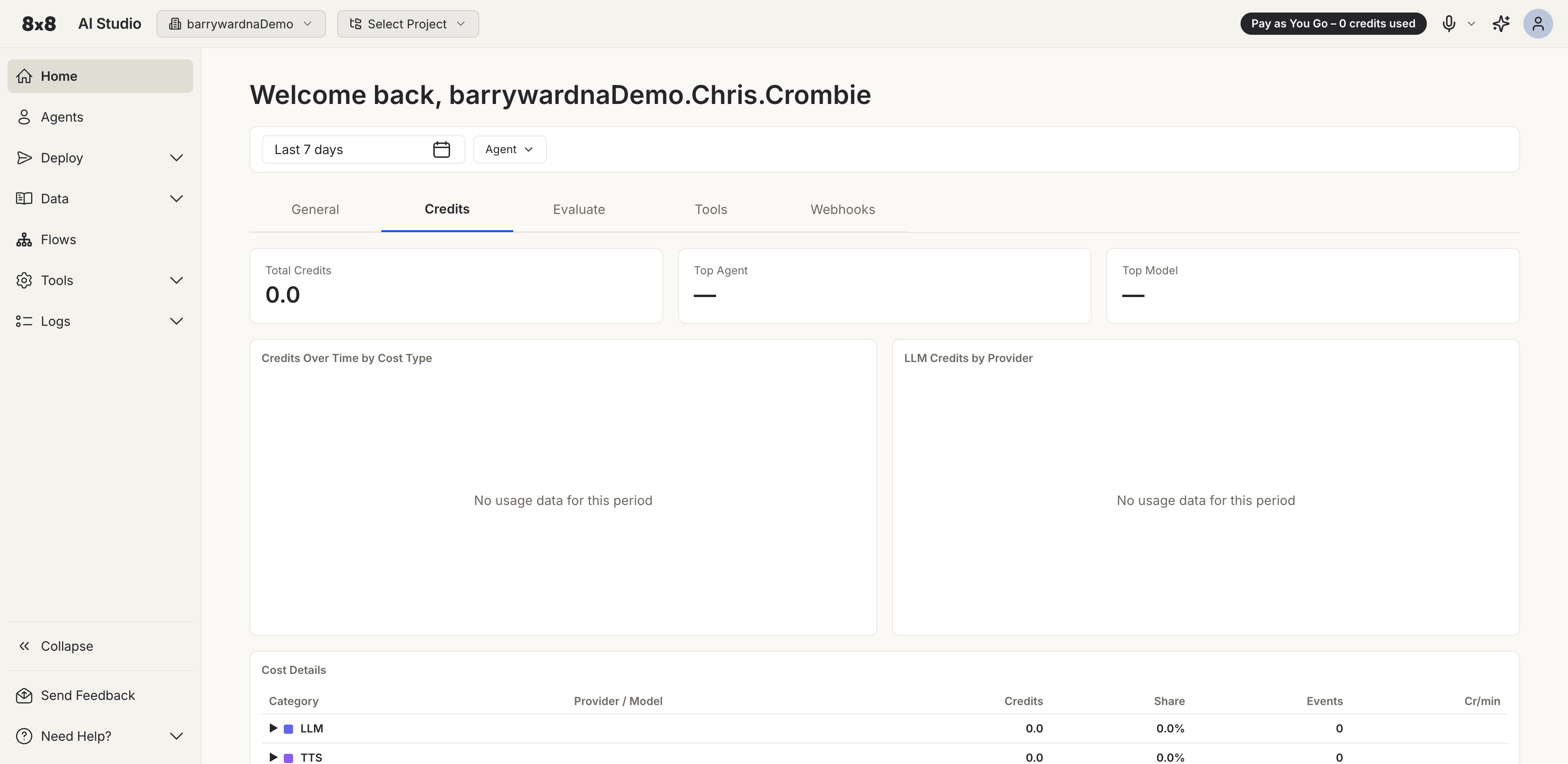
Your 10,000 free credits are consumed first. After that, usage is charged according to your plan (see Selecting a plan).
Staying on top of spend with alerts & budget
From Billing → Budget & Alerts you can set a monthly budget and be emailed before your spend climbs too high.
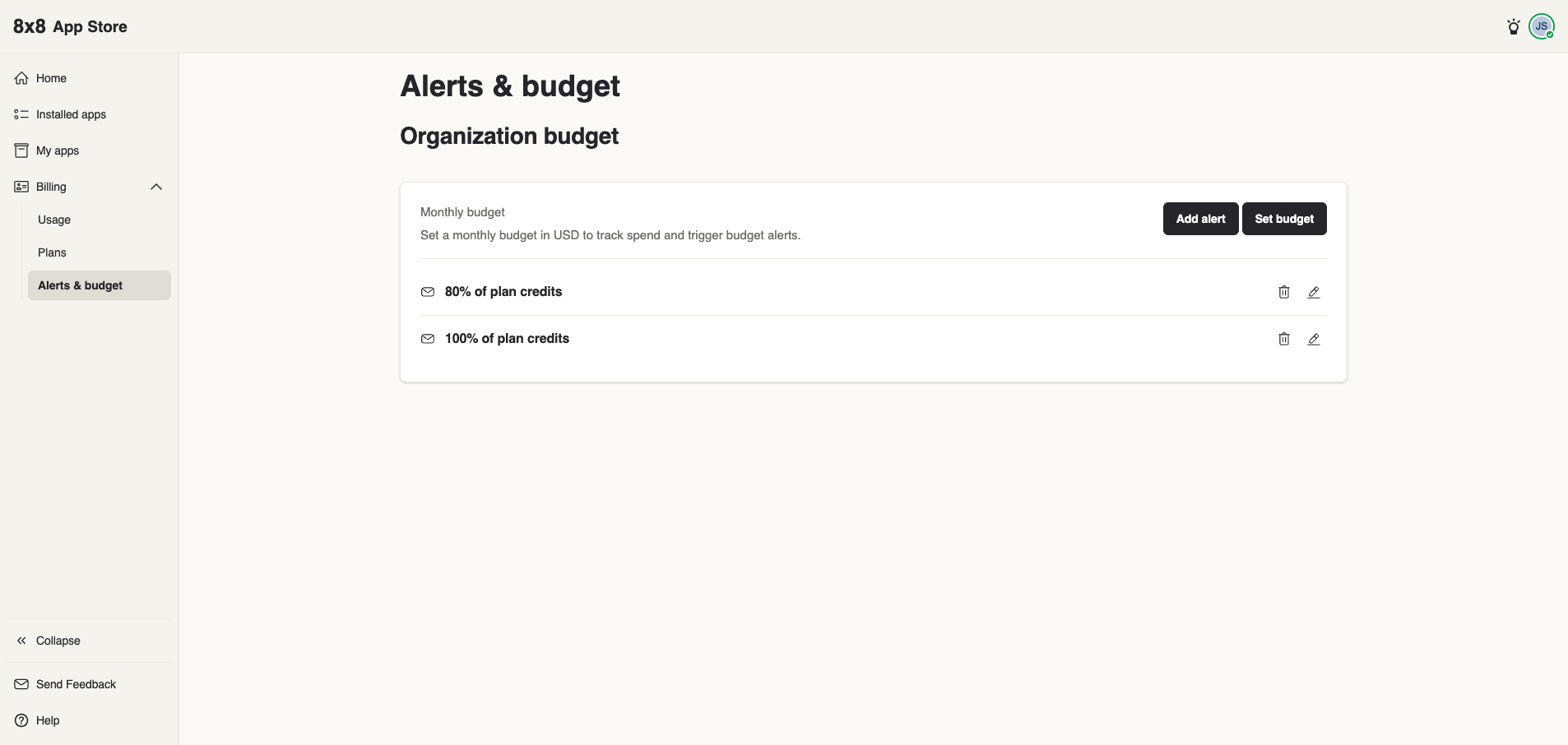
Set a monthly budget
Choose Set budget and enter a figure in USD. This is your intended monthly budget — it's what your alerts are measured against. Your actual costs can still exceed it based on usage, so treat it as a tracking target rather than a hard cap.
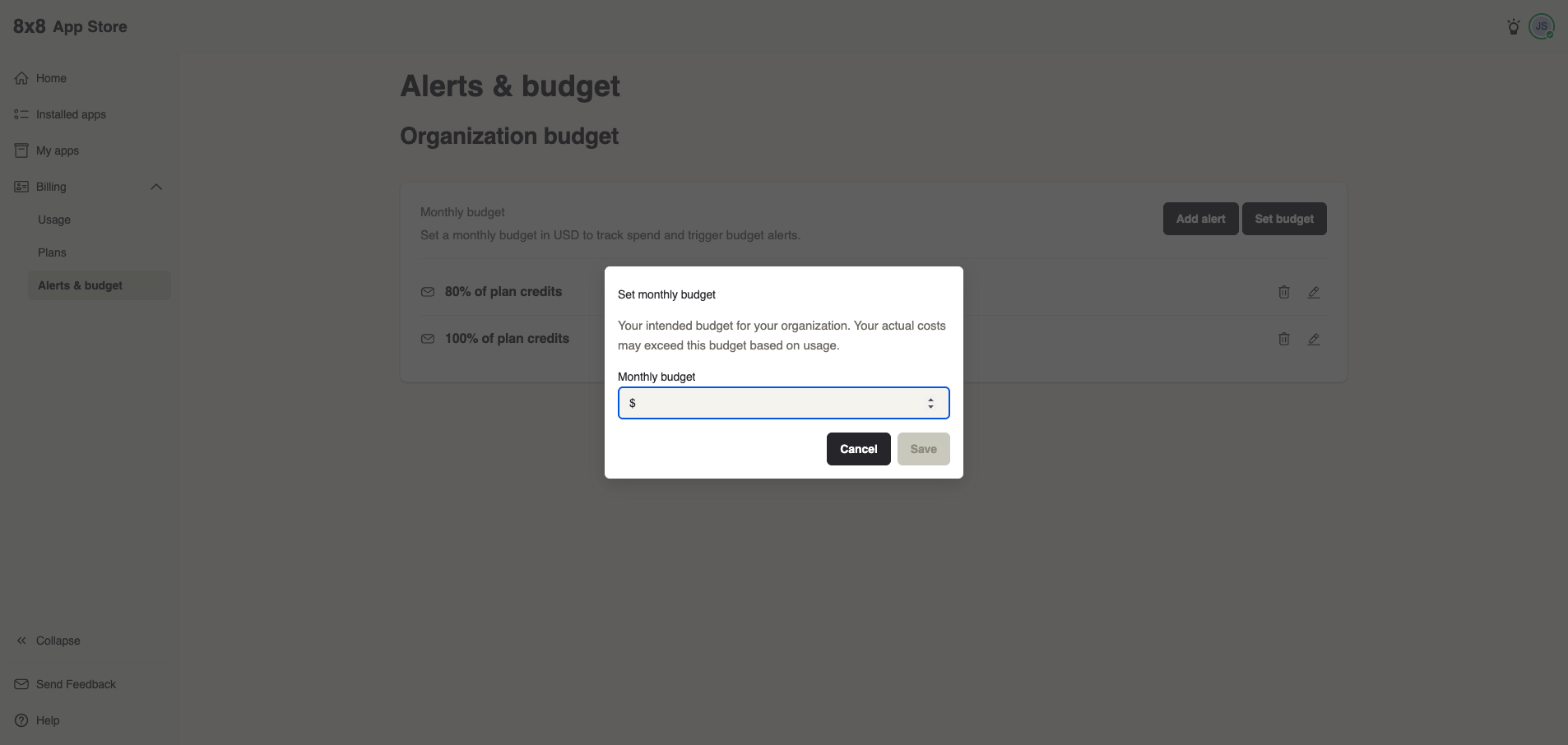
Budget alerts
Two alerts are set up for you by default — at 80% and 100% of your plan credits — and email your organization's owners when usage crosses each threshold.
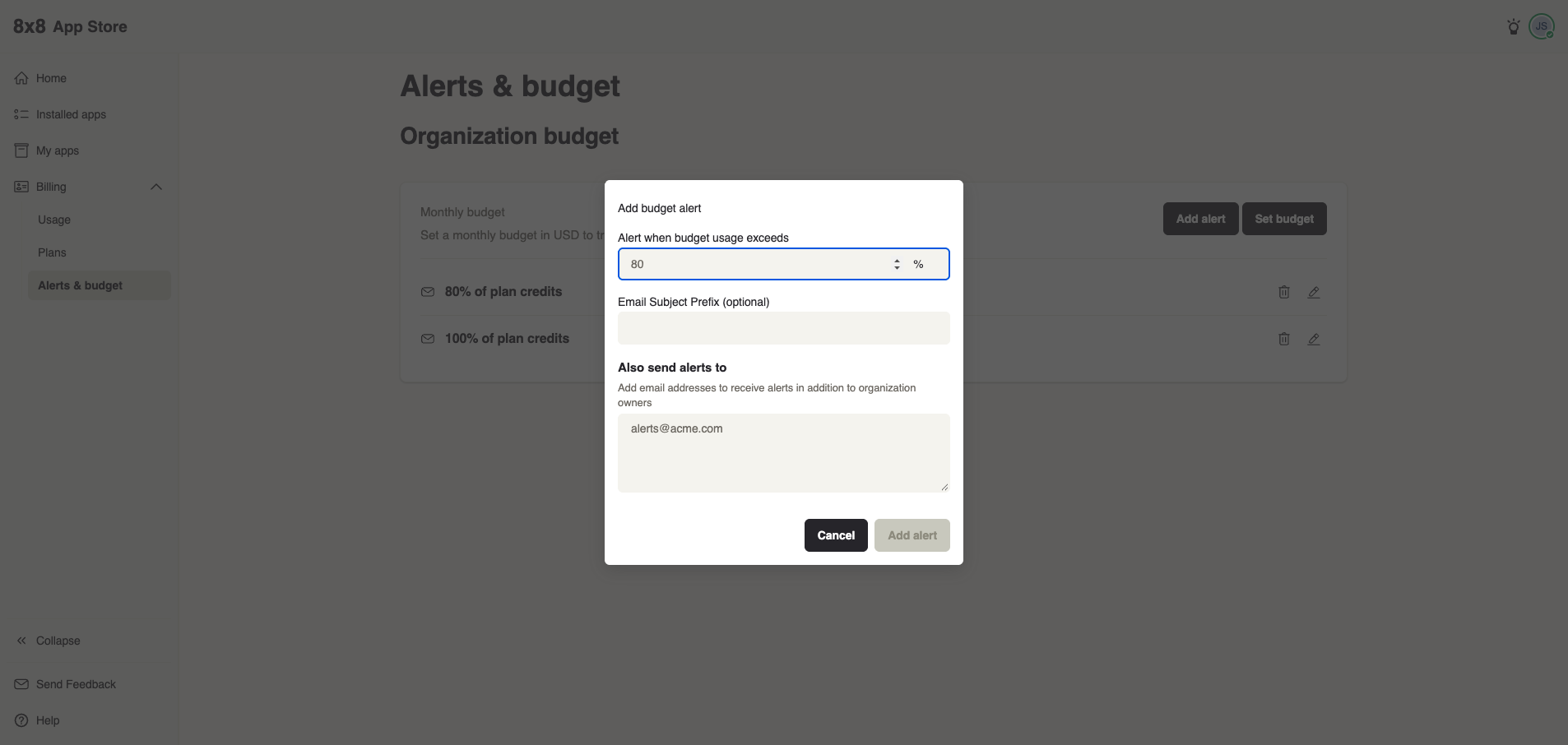
Choose Add alert to create your own:
- Alert when budget usage exceeds — the percentage that triggers the alert.
- Email subject prefix (optional) — a label added to the alert email's subject, handy for filtering.
- Also send alerts to — extra email addresses to notify alongside the organization owners.
You can edit or delete any alert from the list using the icons on its row.
Cancelling
| Plan | How to stop | What happens |
|---|---|---|
| PAYG | Simply stop using it. | With no fixed fee or commitment, charges stop as soon as your usage stops. The plan stays active on your organization at no cost. |
| Starter | Cancel from Billing → Plans before your next cycle. | Your monthly commitment ends at the close of the current billing cycle. Your account then becomes inactive — and you can re-subscribe to either plan with a single click whenever you like. |