Installing a paid app
Some apps in the 8x8 App Store are paid — they run on App Store credits and require a plan. This is the path for installing any paid app: an administrator signs in to the 8x8 Admin Console, finds the app in the App Store, installs it, and chooses a plan.
The screens below use AI Studio as the worked example, but the flow is the same for any paid app.
You choose a plan as part of installing. For a paid app, installing and selecting a plan are one continuous flow — clicking Install takes you directly to the Plans page, with no terms or beta-consent step in between. If your organization already has a plan, the app simply installs. See Selecting a plan. (A free app skips the plan step.)
Step 1 — Open the App Store
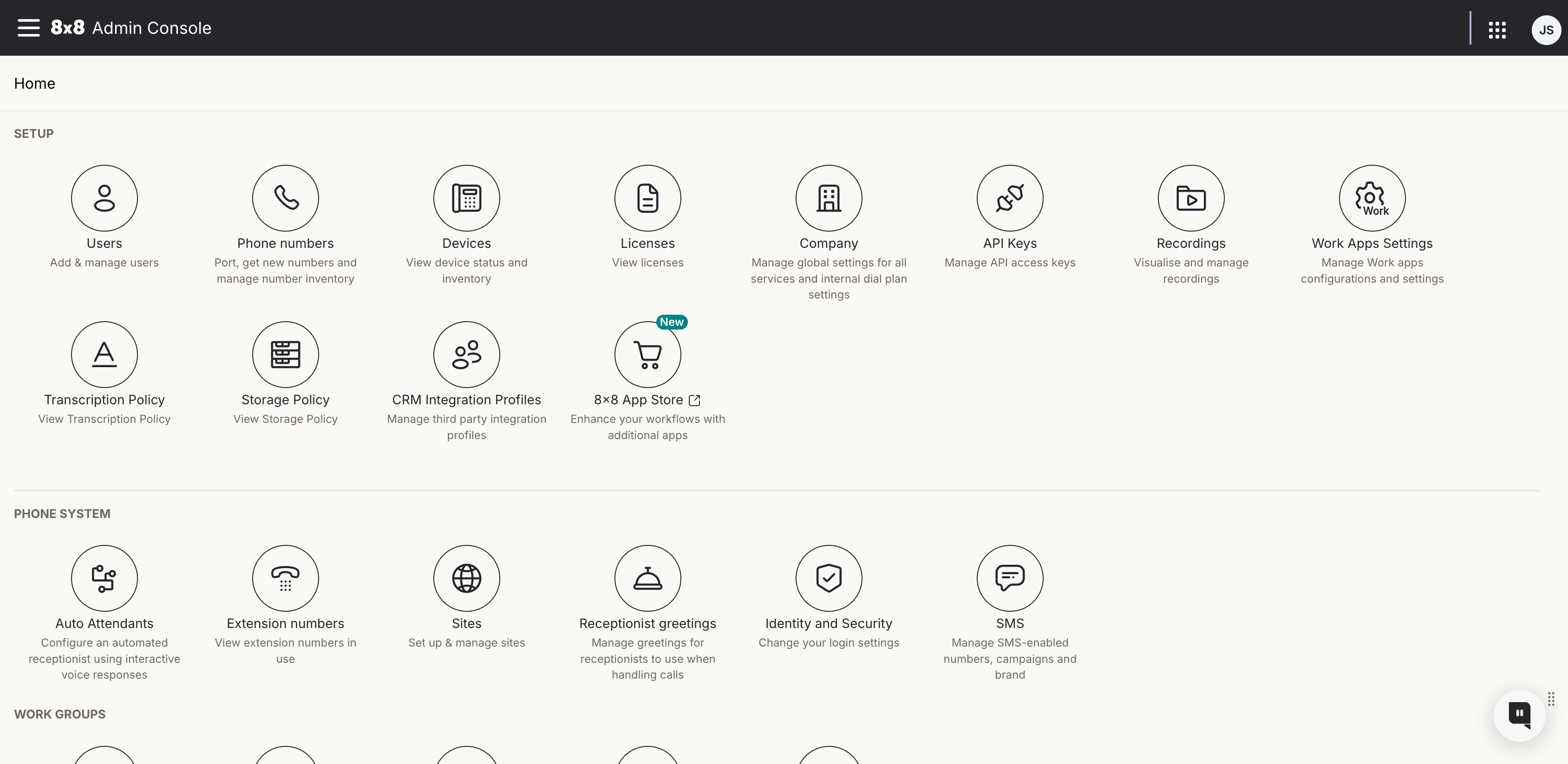
From the 8x8 Admin Console left navigation, open the App Store.
Step 2 — Find the app in the catalog
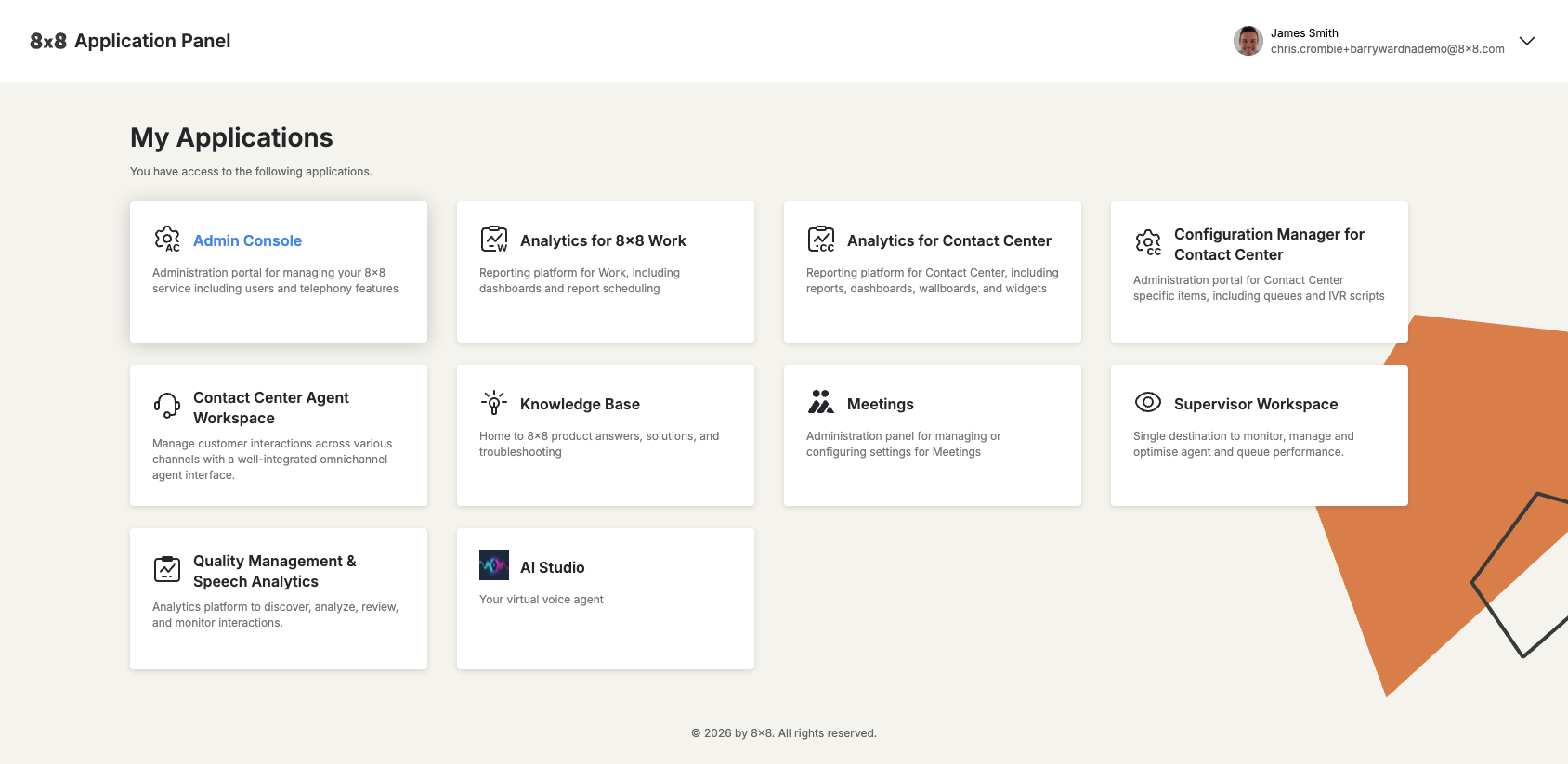
The app appears in the catalog alongside the other 8x8 apps available to your organization. A paid app is marked with a Paid label. Click the app's tile to open its details page.
Step 3 — Review and click Install
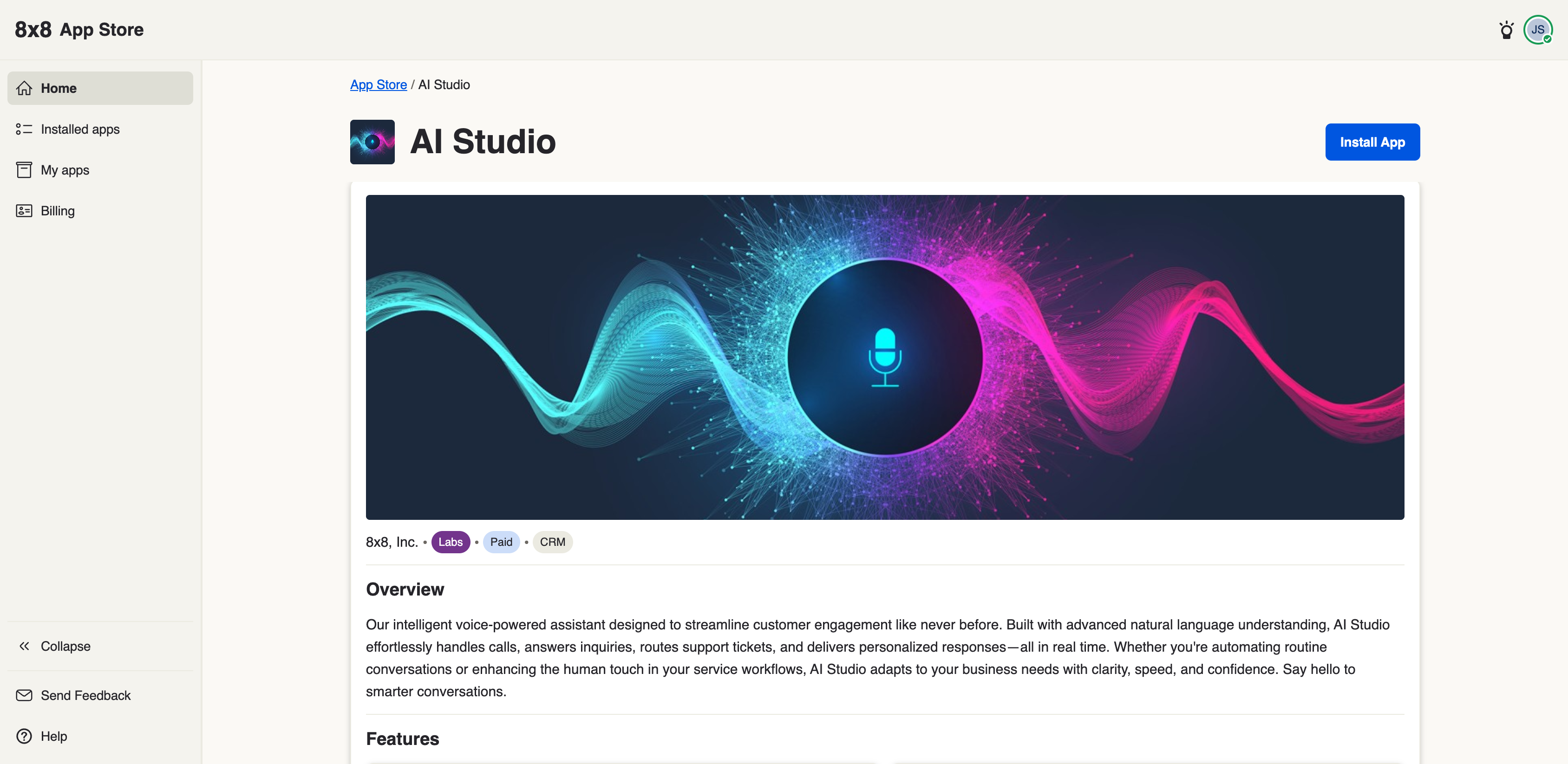
The details page describes what the app does and its pricing model, with an Install button.
If your App Store comes from a reseller: there is no Plans page (Step 4 does not apply). Your reseller chooses which apps you can install and handles the billing for them, so clicking Install installs the app straight away. This is true of every app your reseller offers, not just the paid ones.
If you want to see the terms that apply to an app — or you are not sure they are in place for an app your reseller added recently — ask your reseller. They can confirm it with 8x8.
You still accept the App Store's Terms & Conditions the first time you enter it — see Accepting the App Store terms.
Step 4 — Choose your plan
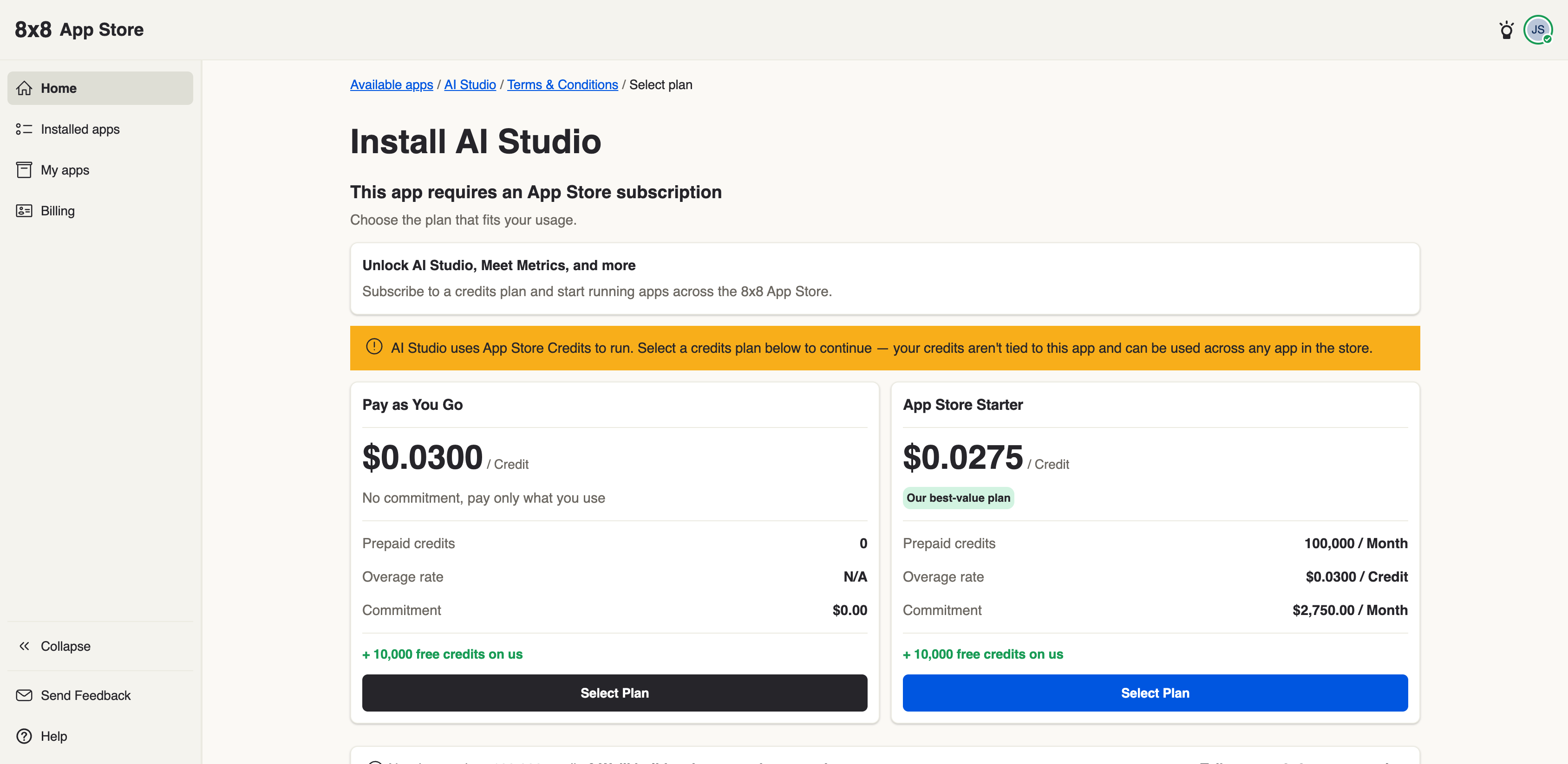
Because this is a paid app and your organization has no plan yet, clicking Install takes you straight to the Plans page. This is where you subscribe.
Continue to Selecting a plan.